 Broker
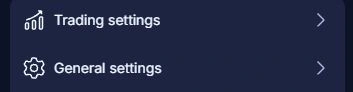
Version note. In the browser demo, open Profile for Trading settings and General settings. We verified the time-zone and confirmation controls. Interface scaling and menu customisation below refer to IQ Option’s documented Appearance panel.
Record the starting view
Open traderoom settings and write down the current time zone, interface scale and language. Use a completed history entry as a reference if one is available. This gives you a way back if a scale change hides a control or a new time zone makes an old screenshot hard to interpret.
Match the clock to your journal
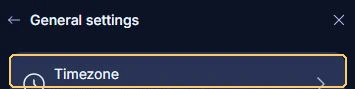
Find the time-zone setting and choose the zone used in your journal. Reopen the same history entry and see which timestamps follow that setting. A separate statement may label its own time zone. Keep the date with each timestamp. For example, 00:15 at UTC+1 corresponds to 23:15 UTC on the previous calendar day.
Adjust the interface
In versions with an Appearance panel, change the scale one step at a time. Open the asset selector and check the smallest prices and labels after each change. Where menu customisation is available, look there for a missing Alerts shortcut. Enlarging the browser page and the platform scale together can push controls out of view.
Review both confirmation settings
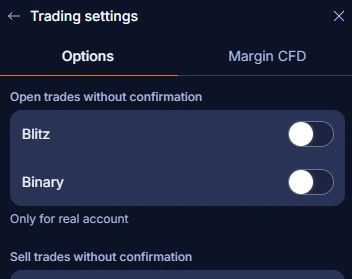
IQ Option documents settings governing how deals open and close. In Trading settings, inspect both choices and the product each applies to. An opening confirmation for a CFD tells you nothing about the current closing preference. You can inspect these settings without submitting a deal.
Check another device
If you use another device, compare the account label, displayed clock and confirmation settings there. A desktop shortcut may have a different mobile equivalent. If a control is missing, record the device, browser or app version and exact setting name when contacting support.
Sources & further reading
- IQ Option settings reference
- IQ Option alert and template controls
- IQ Option chart and drawing controls
Related guides
This is for information purposes only and should not be considered as personal and/or investment advice and/or incentive to continue trading. We do not guarantee the accuracy, validity, timeliness, or completeness of any information or data made available and assume no liability as to any loss arising from any investment based on the content of this material.